 ScreenshotCheck
Hide an address in an order screenshot
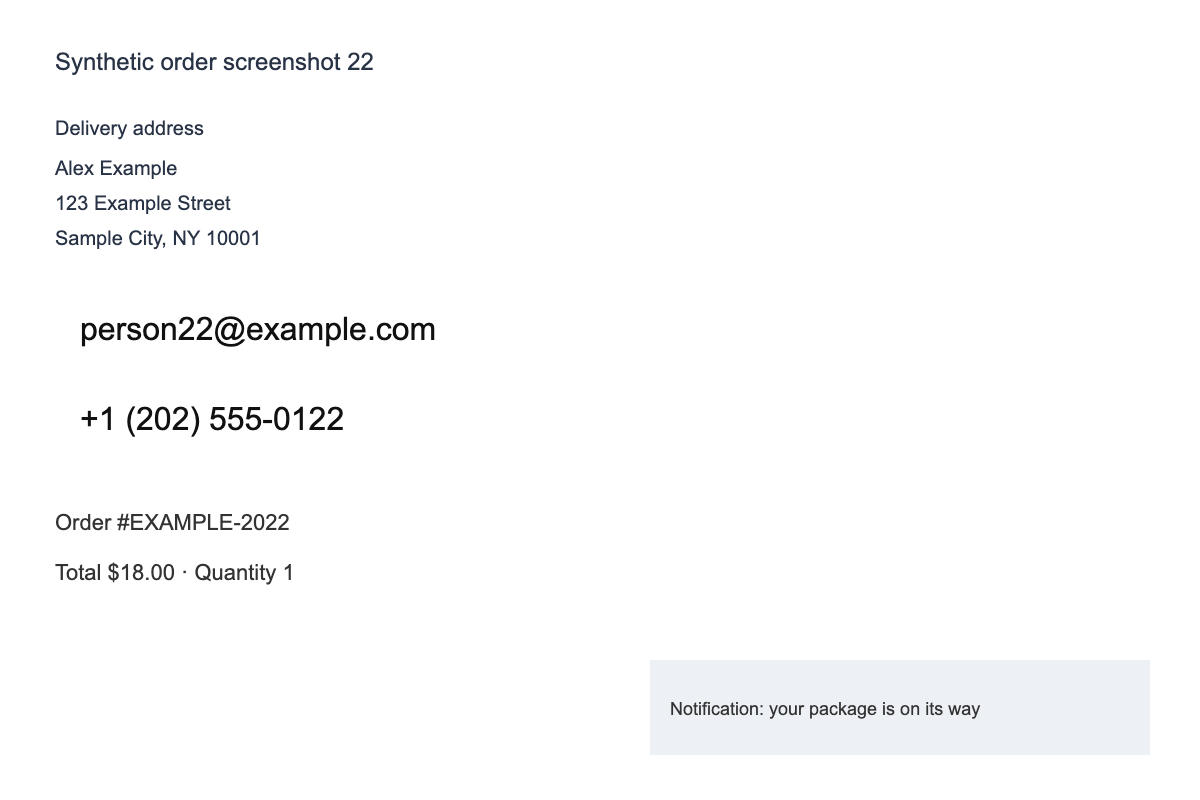
Addresses often span several lines. Covering only the street name can leave a recipient name, house number, city or postal code visible.
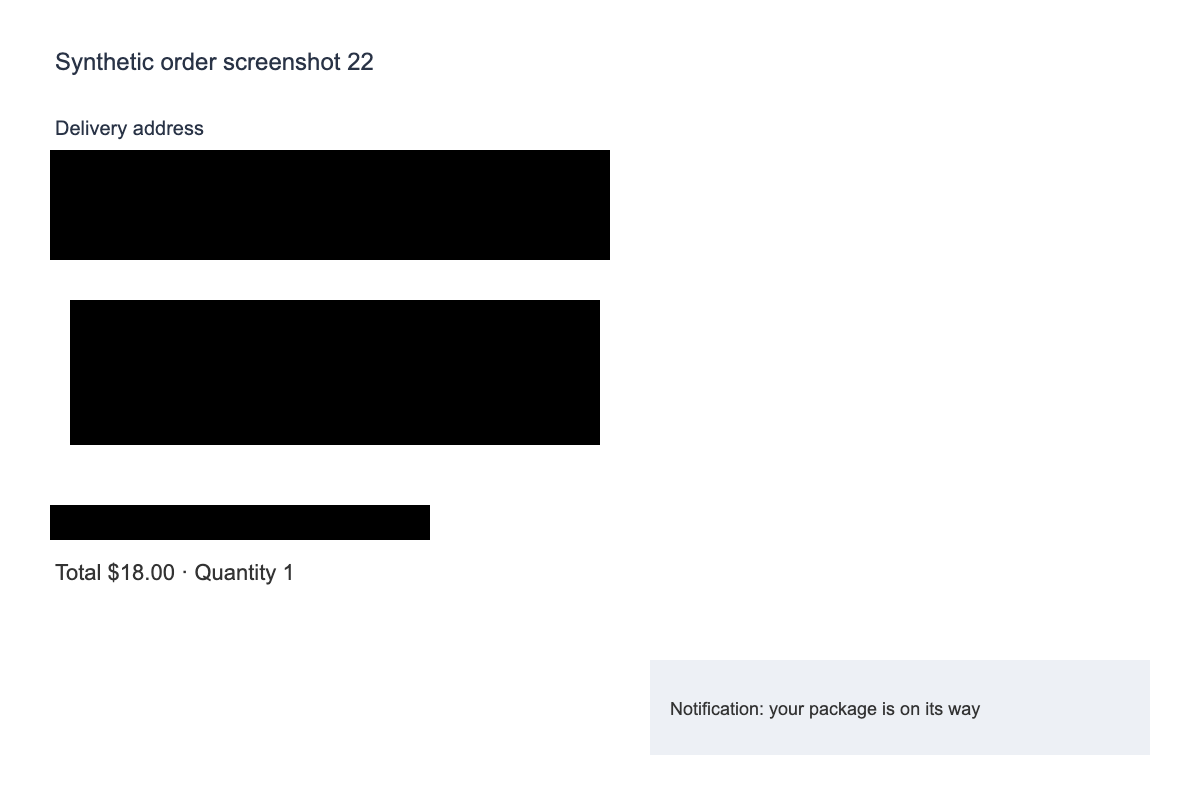
In this fictional example, cover Alex Example and every delivery-address line. Keep the product details visible if they help explain the order problem. Review the reference, phone and email too.
Trace the whole address block
- Start at the recipient or household name, including care-of or apartment lines.
- Continue through the building number, street, unit, city and postal code.
- Check delivery instructions, nearby maps, tracking links and barcodes separately.
- Repeat for billing and saved-address sections elsewhere in the image.
Example: showing a delivery delay
Keep the fictional product and delayed status. Cover Alex Example and the complete address block rather than only the street line. A city, postal code or apartment number may still narrow down the location.
Verify the exported copy
Zoom in along the bottom and right edges of the mask. Address lines often wrap beyond the label or extend farther than the first line. For a public post, you normally do not need any portion of the home address.
The automatic address suggestion is tentative. It looks for labeled address fields, nearby continuation lines and street-like text; it may not include every line. Extend the mask manually and inspect the final PNG.
Open the free screenshot checker
Examples use fictional data. Text checks can miss information; no result certifies an image as safe to share. Privacy and limitations
Reviewed with the local build on 17 September 2026. This site uses Google AdSense. Google may use cookies and collect data to serve and measure ads. Affiliate links are disabled. This public site counts aggregate page visits and tool clicks. It does not measure completed checks or identify visitors.