 ScreenshotCheck
Final privacy checks before posting a screenshot
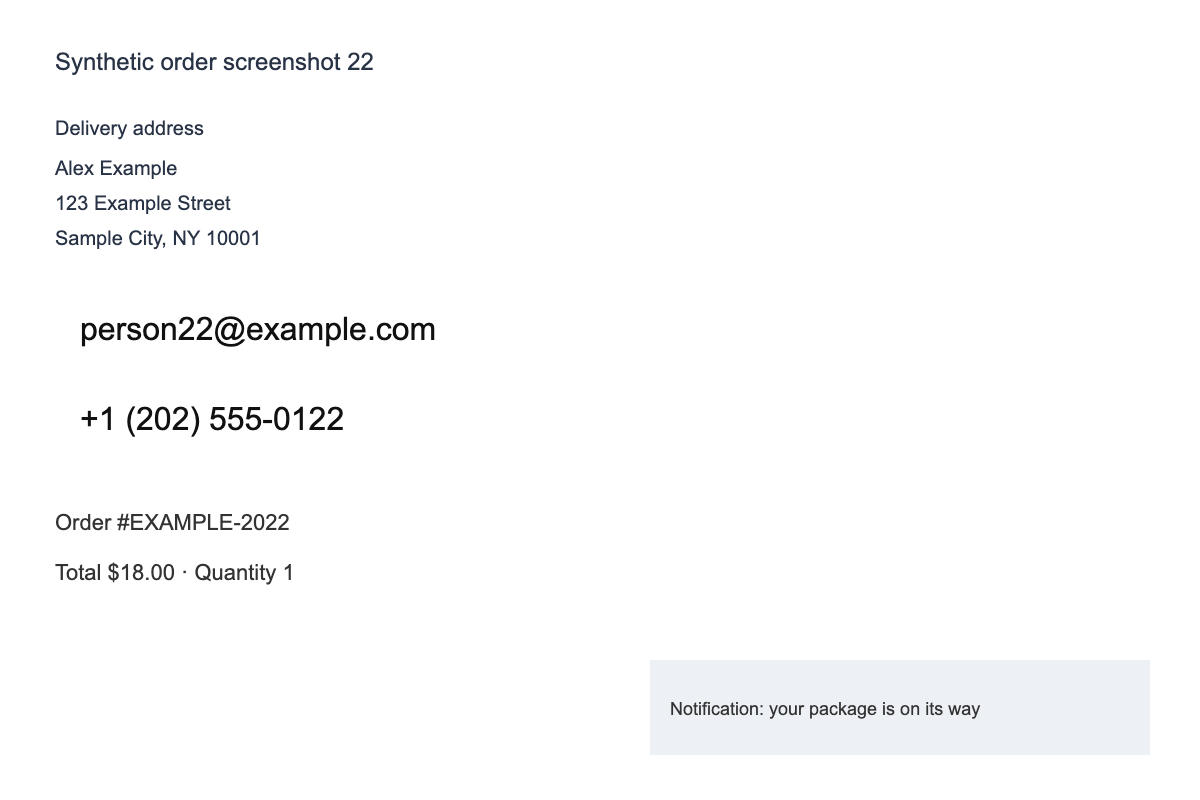
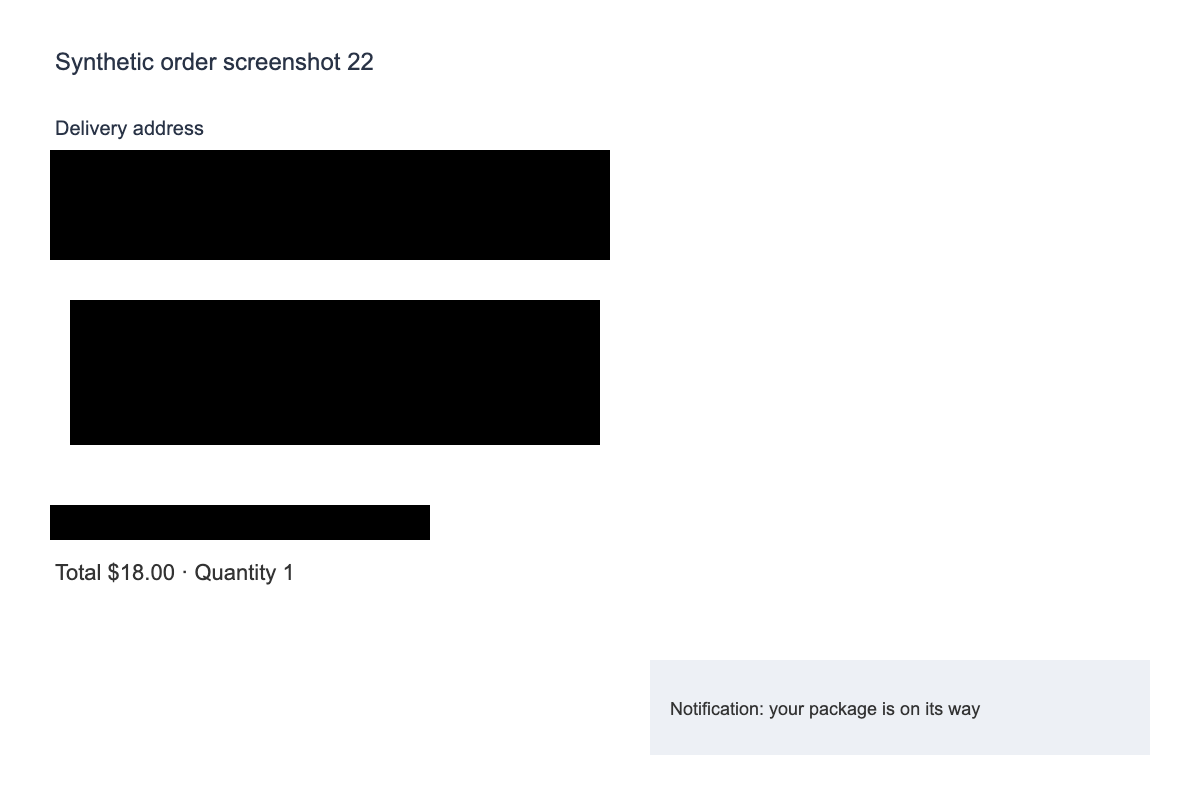
Decide what the reader needs to see. In our fictional order example, the product and delivery status explain the story; the recipient’s contact details do not.
- Upload the image. English text checks start automatically; you can cancel and continue manually.
- Cover the name, address, email, phone and order reference.
- Zoom in to check edges. Look at browser chrome and notifications separately.
- Review the actual export, then download the PNG.
Run a final edge-to-edge review
Start in the top-left corner and scan each row to the bottom. Look for notifications, profile pictures, signatures, scannable codes and repeated identifiers. Check every mask edge for visible first or last characters.
Check the file you will actually send
Open the downloaded PNG outside the editor. Confirm that the useful context remains readable and the private areas are fully opaque. A thumbnail is too small for this check. Use a neutral filename, and confirm the attachment preview shows the redacted copy.
If you find a miss, return to the editor, extend the mask and export again. Remove the earlier attachment from your draft before adding the corrected copy.
An editor overlay is not enough. The downloaded copy must contain opaque pixels covering the selected details. You still choose what to cover.
Open the free screenshot checker
Examples use fictional data. Text checks can miss information; no result certifies an image as safe to share. Privacy and limitations
Reviewed with the local build on 17 September 2026. This site uses Google AdSense. Google may use cookies and collect data to serve and measure ads. Affiliate links are disabled. This public site counts aggregate page visits and tool clicks. It does not measure completed checks or identify visitors.