 ScreenshotCheck
Remove an email address from a screenshot
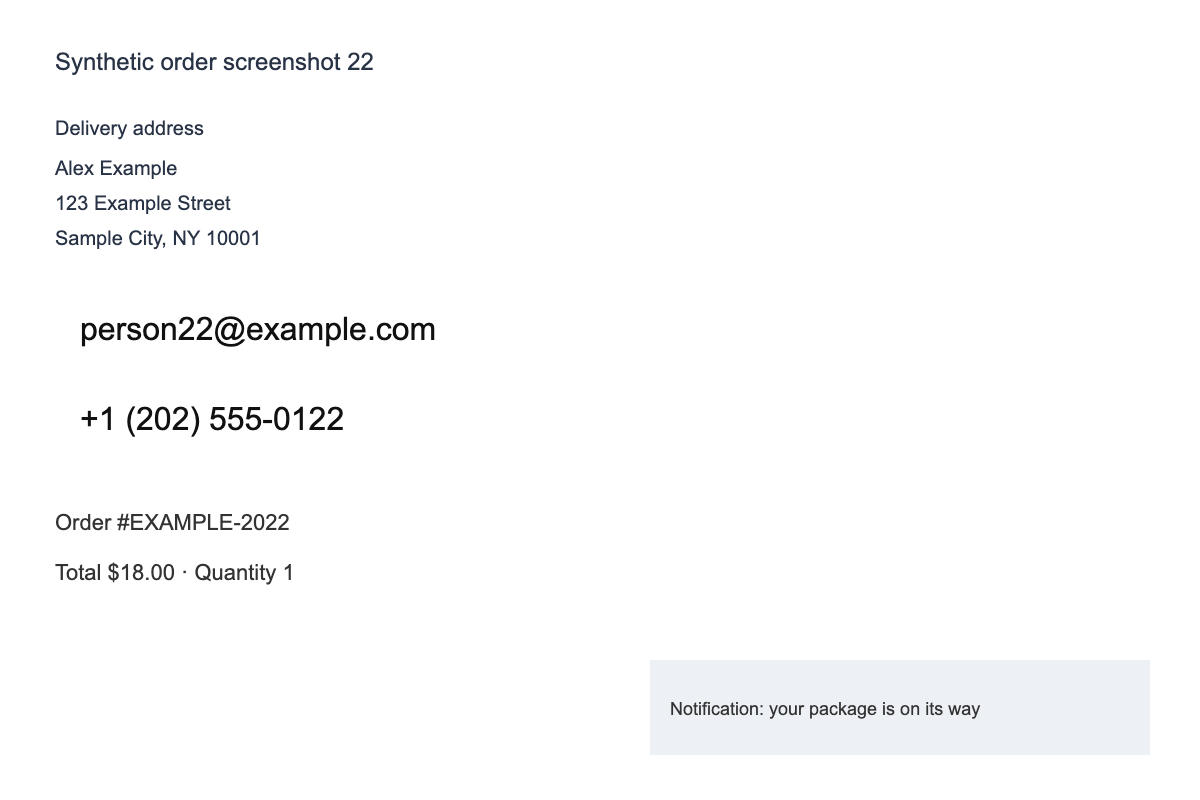
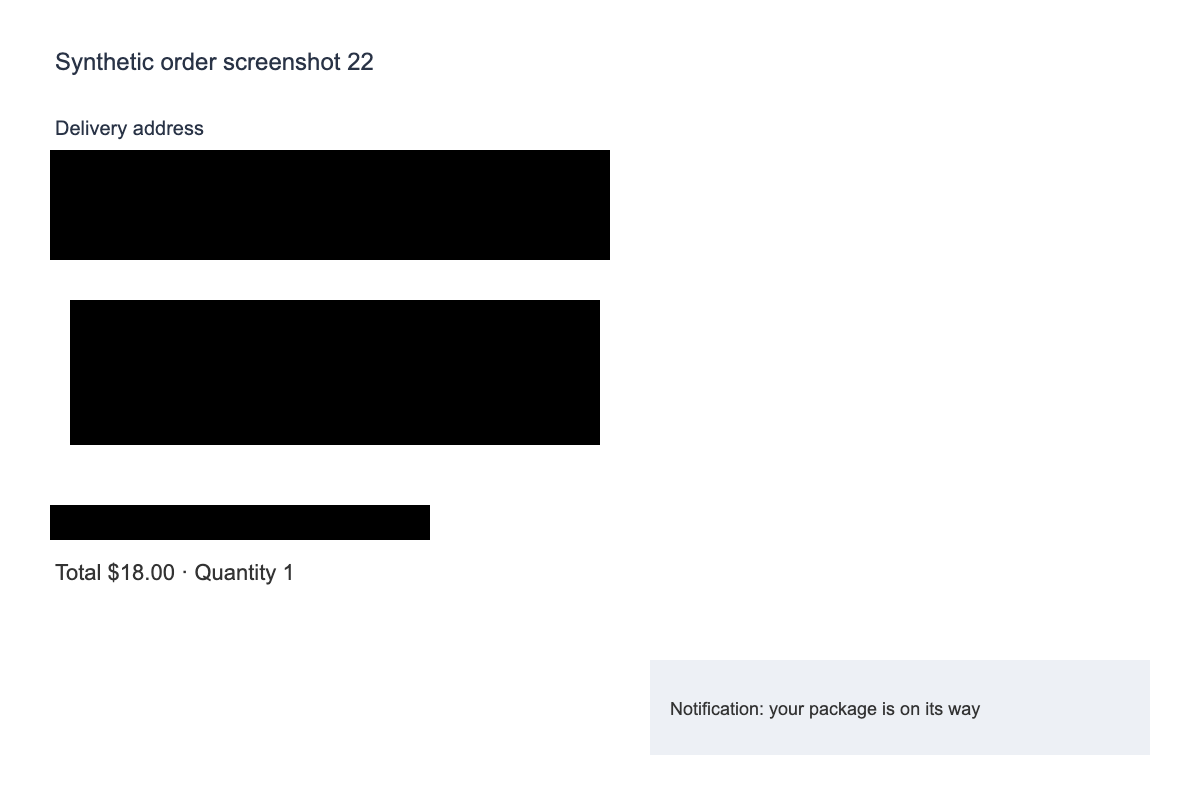
The example includes a fictional example.com address. Check text can suggest a region when English OCR recognizes it. Select its highlight and press ✓ to apply the mask, or × to dismiss it.
Cover the first and last characters, including punctuation. Check other occurrences in the sender row, account menu and notifications. Add manual masks wherever checks miss text.
Find every occurrence
- Sender and recipient rows, including To and CC.
- Quoted replies, signatures and forwarded-message headers.
- Account menus, browser address bars and notification previews.
- Autocomplete suggestions and contact cards.
Keep the message, remove the identity
For a fictional sign-in error, keep the error wording while covering the entire example.com address. The part before the @ can identify a person; a company domain can reveal their workplace. Cover both when neither is needed.
Watch for partial matches
Small fonts and line breaks can cause text checks to miss an address or capture only part of it. Draw a manual mask over the complete value, including punctuation at its edges. Review display names and profile photos separately: hiding the email alone may leave the sender identifiable.
Compare with the original using Hold to view Original. Release it to inspect the redacted copy, then download. No automatic sharing or clipboard write occurs.
Open the free screenshot checker
Examples use fictional data. Text checks can miss information; no result certifies an image as safe to share. Privacy and limitations
Reviewed with the local build on 17 September 2026. This site uses Google AdSense. Google may use cookies and collect data to serve and measure ads. Affiliate links are disabled. This public site counts aggregate page visits and tool clicks. It does not measure completed checks or identify visitors.